

Google Forms: Create a Quiz in Just a Few Simple Steps
Docswrite Team
Nov 04, 2024
2 min read

Creating a quiz using Google Forms is a straightforward and effective way to assess knowledge, gather feedback, or engage your audience. Whether you’re an educator looking to test your students or a business professional gathering input from colleagues, Google Forms provides a user-friendly platform to design quizzes with various question types. In this post, we’ll walk you through the steps to create your own quiz in Google Forms.
Step 1: Prepare Your Google Doc
Before using Formswrite, ensure your Google Doc is well-structured.
-
Format questions as bullet points or numbered lists.
-
Add any specific instructions to clarify your content.
Step 2 : Publish Your Content Using Formswrite
Now that your content is ready, it’s time to publish:
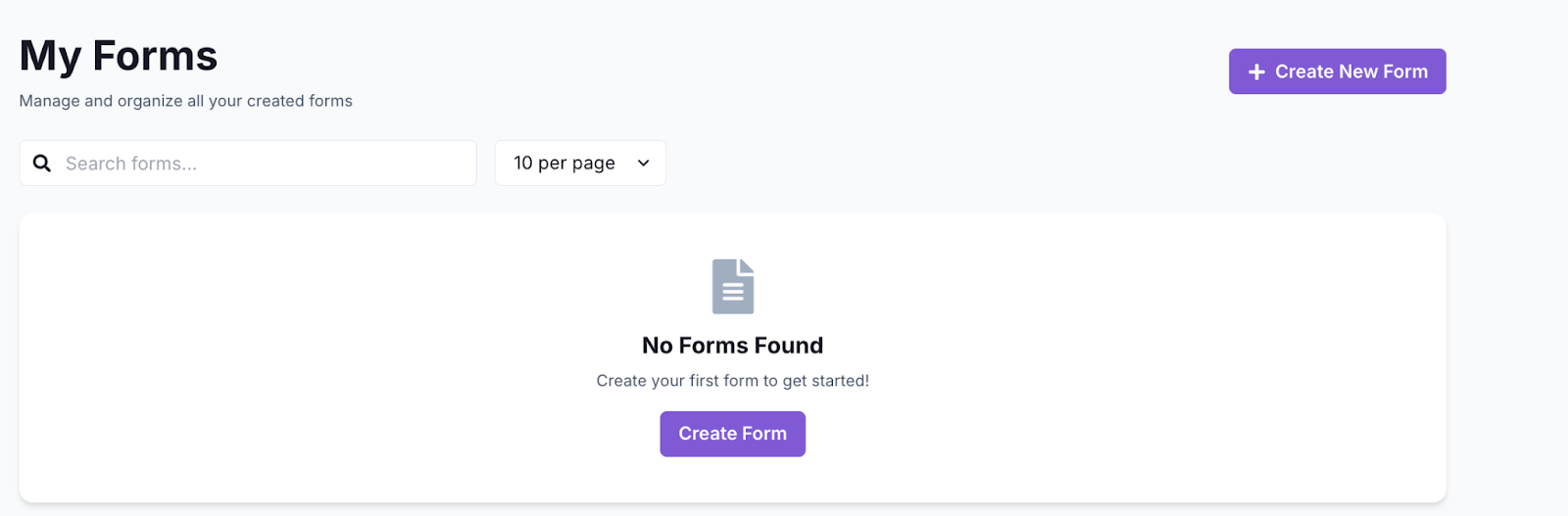
Open Formswrite Dashboard: Log in to your Formswrite account and navigate to your dashboard.
Select “Create New Form” & Select your document: Choose the Google Doc you want to publish from the list of documents linked to your Formswrite account.
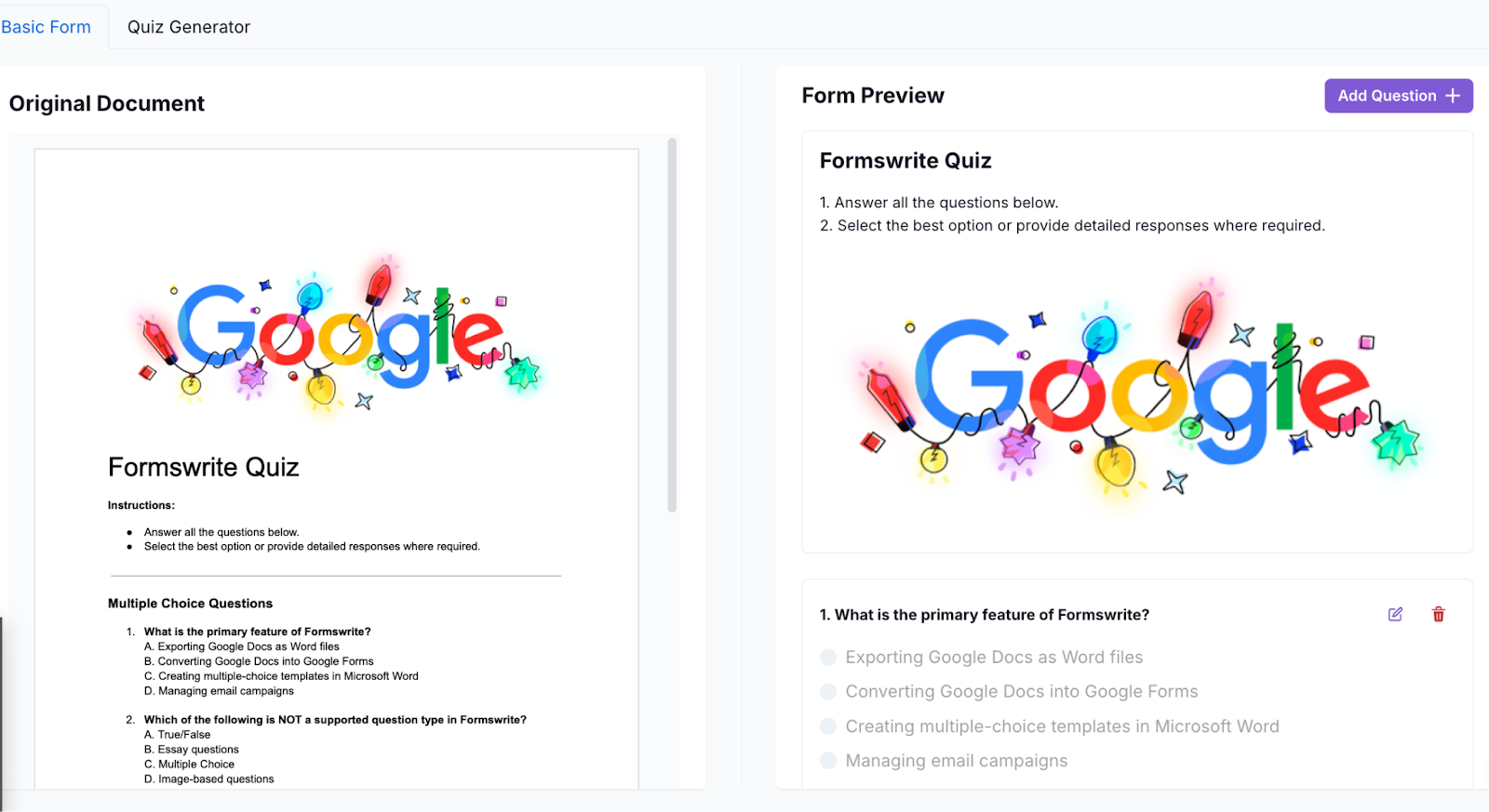
Preview your document & your form: Customize the publishing according to your preferences. You will be able to add, delete or modify your question.
Convert to Form: Click the “Convert to Form” button. Formswrite will handle the rest, ensuring your content is converted effectively.
“View Form”: When satisfied, click on the “View Form” button. Formswrite will integrate directly with your Google account, creating a form you can access and share via Google Forms.

Step 3: Share Your Form
Now that your Google Form is ready, you can copy the shareable link or send invitations directly from the Google Forms interface.
FAQ Section
**Q1: Can I see responses in real-time?**Yes, Google Forms allows you to view responses in real-time. You can check responses by clicking on the “Responses” tab at the top of your form.
**Q2: Can I edit the quiz after sharing it?**Absolutely! You can make changes to your quiz at any time, even after sharing it. Participants will see the most recent version when they access the form.
**Q3: Is Google Forms free to use?**Yes, Google Forms is completely free to use with a Google account, making it an accessible tool for everyone.
**Q4: Can I analyze quiz results?**Yes, Google Forms offers built-in analytics that lets you view summary statistics and individual responses. You can also export the results to Google Sheets for further analysis.
← Back to Blog